How to import your workout history into PRGRES
PRGRES imports CSV exports from Hevy, Boostcamp and WorkIt, and a generic CSV from any other app. Every imported workout earns XP, so your past training counts toward your level.

PRGRES is free on the App Store for iPhone and iPad with iOS 17 or later. This site calls it PRGRS.
Last checked
What PRGRES can import
- Hevy: the workout CSV from Export Data.
- Boostcamp and WorkIt: their CSV exports.
- Any other app: a generic CSV in PRGRES’s own format.
PRGRES reads the file on your iPhone and doesn’t upload it anywhere. It imports your workouts, not your routines, so rebuild those as plans. There’s no limit on how many plans you save.
Step 1: Export a CSV from your old app
From Hevy
In Hevy, go to Profile > Settings > Export & Import Data > Export Data and choose Export Workouts. PRGRES can’t use the other option, Export Measurements. Save the file to the Files app.
From Boostcamp or WorkIt
Export your workout history from the app as a CSV file and save it to the Files app. PRGRES recognizes both formats from their columns.
From any other app
Put your history in a CSV file with one row per set and these columns: Date, Workout, Exercise, Weight (kg) and Reps. The import screen in PRGRES shows the full format, including the optional columns, and has a Weight Unit in File setting for files in pounds.
Step 2: Import the file into PRGRES
- Open Profile > Settings and tap Import Workouts in the Data section. It’s also in the menu on the History screen.
- Tap Select CSV File and choose your export. You don’t pick a format: PRGRES recognizes it from the file’s columns.
- Check the preview of the workouts and exercises in the file.
- Tap the Import button. The result screen shows how many workouts came in and the XP your past training earned.
After the import
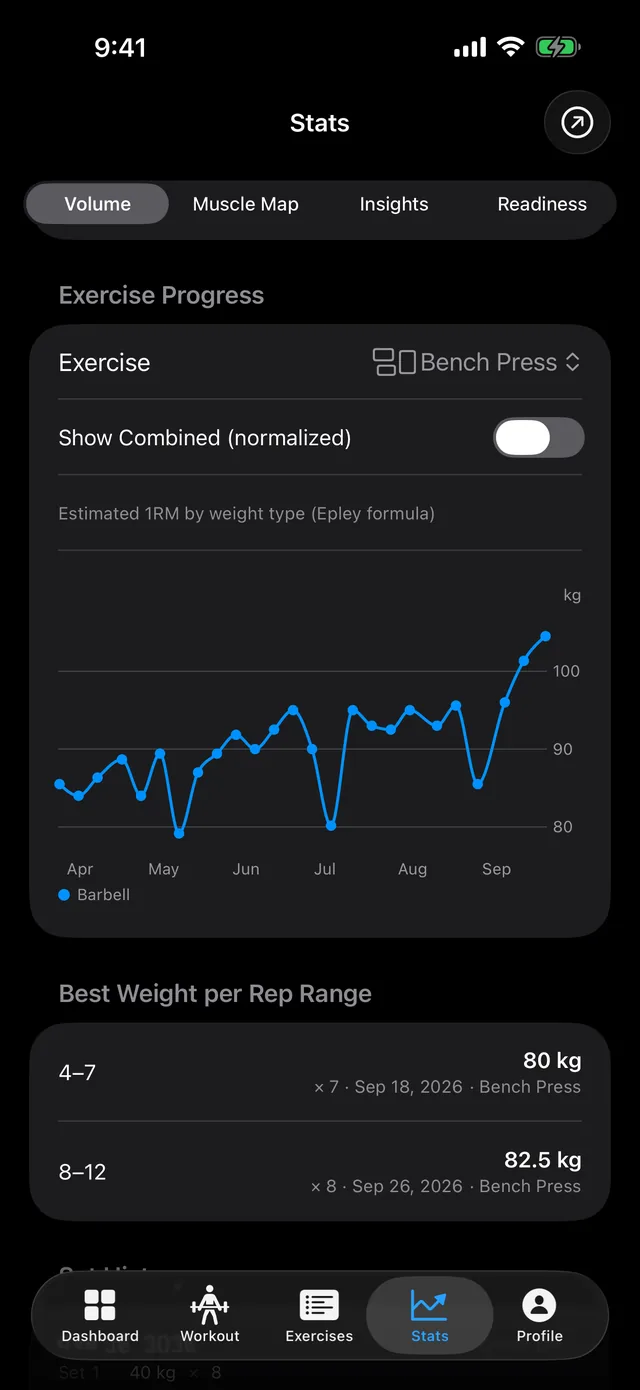
Your past workouts appear in History, and the charts in Stats include them, so your progress runs back to your first imported session.
Moving from Hevy? How to move your Hevy workouts to PRGRS goes through which columns carry over.
Sources
The Hevy export steps were last checked on Hevy’s own help center on October 9, 2026. Other apps change their menus and features over time, so check their help pages if a step doesn’t match.
PRGRES is free on the App Store for iPhone and iPad with iOS 17 or later. This site calls it PRGRS.